On this page you will find a complete guide on setting up, and troubleshooting Logitech H800

There are two ways to connecting this headphone to your computer
1. Bluetooth
2. USB Nono receiver
Connecting to a Mac via Bluetooth
1. Click on the Apple Menu
2. Choose System Preferences
3. Click on Bluetooth Preference
4. Power on the wireless headset
5. Slide the Device Selection switch on the right ear cup to the Bluetooth (middle) position. See Illustration.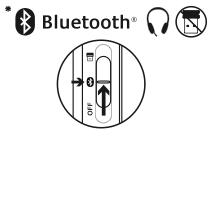
6. Logitech Wireless Headset will show up under Bluetooth devices
7. If Mac requests a security code, PIN, or pass code, enter 0000
Connecting to Mac via USB Nano receiver
1. Plug nano receiver into available USB port on your computer
2. Slide the Device Selection switch on the right ear cup to Nano receiver(top) position. See Illustration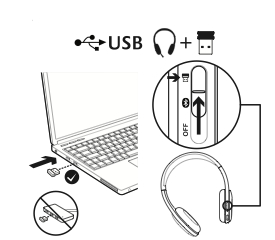
3. You headset should be connected to your computer
How to make headset as the default audio output/input device for your operating system.
Mac:
1. Click on the Apple Menu
2. Open System Preferences
3. Click on Sound preference
4. Choose the Output tab
5. Choose the Logitech Wireless Headset H800
6. Select the Input tab
7. Choose the Logitech Wireless Headset H800
8. Close System Preference window
Windows 10:
1. Go to Start/Control Panel/Sounds/ Playback Devices tab
2. Choose Playback Devices
3. Choose the Logitech Wireless Headset H800
4. Click Set Default, and then click OK
5. Select the Recording Tab
6. Choose the Logitech Wireless Headset H800
7. Click Set Default, and then click OK
Answering a call with headset
To answer a call with a smartphone, press the Play/Pause (phone icon) button on right ear cup To end a call, press and hold for three seconds the Play/Pause button. See Illustration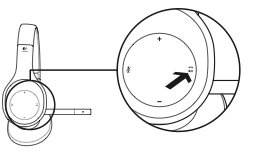
Headset Features:
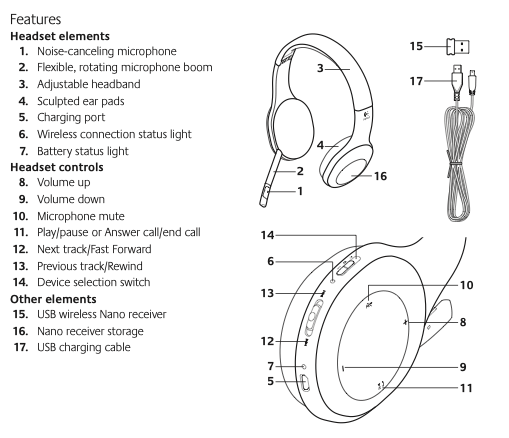
Troubleshooting
Nono receiver and battery information
Wireless connection status light
Connection made; your headset is ready to use
Flashing green
Your headset and Nano receiver are not connected
No light
Your headset is powered off
Help With Setup